1About Raptool Commander
- Raptool Commander is a Windows program for looking after Raptool servers: publishing apps, security, alerts, a standby server and adding new servers.
- It was called Raptool Publisher before version 2.0.47. The publishing part inside it is still called Publisher.
- Every server tool opens in its own window on a server desktop, with a Start menu, a dock and notifications.
- It is for Raptool staff and for companies with a Commander licence. It uses the server login set up on this PC.
2Install and updates
- Run the setup. Shortcuts named Raptool Commander are added to the desktop and the Start menu. Older Raptool Publisher 2 shortcuts are moved away, not deleted; taskbar pins keep working.
- Only one copy runs at a time; starting it again brings the window forward. With Auto publish on, Commander keeps running in the tray when you close the window. The tray menu has Open and Quit Raptool Commander.
- Commander updates itself: it downloads a new version, checks every file, and switches to it at the next start.
- From version 2.0.76 the new version is installed next to the running one. If it does not start properly, Commander goes back to the previous version by itself.
- The version number is shown in small text at the bottom right.
3The server desktop
- Start menu (green ball, bottom left): every server tool, with search and the categories Monitoring, Apps, Security, Database, Email, Accounts, Domains and System. Settings is in its footer.
- Publisher button (rocket): the projects list and the publish progress.
- Dock: quick buttons for the tools you use most. Right-click a tool to add it to or remove it from the dock or the desktop.
- Server picker: which server you work on and whether it is connected.
- Bell: notifications (publish results, alerts, tool results).
- Desktop: a clock, a server card (CPU, memory, disk, apps, certificates), the Commander tile with the latest publishes and the Server Cop tile (see below).
- Every window and tool has an (i) button that opens a short step-by-step guide. Tools that change the server end their guide with a disclaimer step.
4Publishing apps
The Publisher packs an app on this PC, sends it to the server, builds and starts it, sets up HTTPS and checks that the live app answers with the new version. See the Raptool Publisher user manual for every step. Newer additions:
- Queue next: on a project card (or right-click in the list), moves an app with a waiting version to the front of the Auto publish order. It is published right after the one that is publishing now. Remove from front undoes it. The Needs update view shows the order: Now, 1, 2, 3 and so on.
- New apps set themselves up: a new app whose settings file is complete and marked ready is set up and published by Auto publish, with the normal checks. If something is missing, the card says what: New - click to set it up and the reason.
- If a new version fails, the app keeps running on its previous version.
5Server Cop (security)
Server Cop watches the server for known security holes in the operating system, the shared database, the web server and every app, and can fix them. Open it from Start menu → Security → Server Cop (shield icon) or from the Server Cop tile.
The report row
- Last patrol and Patrol every (how often Server Cop checks), Last auto update, failures in the last 7 days and Auto fix On/Off.
- Counts for Critical, High, Medium, Low, Known-exploited and Fixable. Click a count to see those findings.
- Patrol now starts a check at once; the window follows it. Refresh reads the latest report.
Views
| View | What it shows |
|---|---|
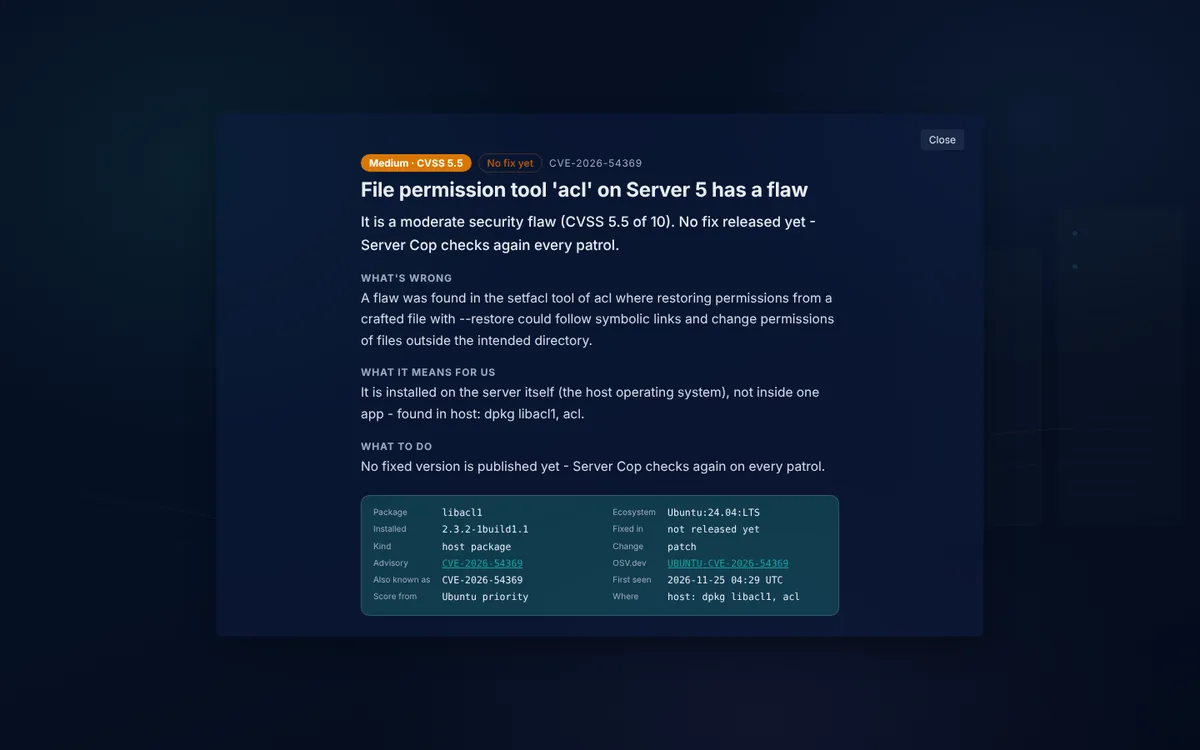
| Findings | One row per security hole: severity, score, known-exploited, app, component, installed version, fixed in, advisory link, a Fix button, first seen and a summary. Click a row for the details. |
| Containers | One row per running app container, the shared database and every static site: state, health, uptime, image, base image, CPU, memory and open findings. Logs shows the last 200 lines; Fix fixes that app's findings. |
| Everything | Everything installed that Server Cop knows about, with versions. |
| Auto update | A master switch and a night window, then one row per part (server, shared database, web server and every app) with Automatic and Major too. All are off until you switch them on. |
| Log | What Server Cop did, and when. |
Fixing
- Fix on a row: confirm, and Server Cop makes a backup, applies the fix, checks that the app still answers, and rolls back if it does not. The result also goes to the bell.
- Fix all (N): one job per app or part, all listed in one confirmation, run one by one. The Fix column shows each job: Queued, Running, Done, Nothing to do, Rolled back, Failed or Skipped. Stop finishes the running job and skips the rest.
- A fix that needs a change in the app's own code (a library the app uses) is written as a request note in the app's project folder. Code on the server is never changed.
- Auto fix On switches automatic fixes on for the server, database, web server and every app (minor updates). Major updates stay off unless you switch them on per app.
The Server Cop tile
- On the desktop, under the Commander tile: Critical, High, Known-exploited and Fixable counts (click to open them), last and next patrol, Auto fix on or off and the fix that is running.
- Patrol now and Fix all open Server Cop with its confirmation. Right-click → Hide, or switch it off in Settings.
6Watchdog (alerts)
Watchdog checks the server every 5 minutes (1 to 60) and tells you when something needs attention. Open it from Start menu → Monitoring → Watchdog. It only reads; it never changes the server.
| Event | When it fires |
|---|---|
| Site down | An app address does not answer a number of checks in a row. If this PC itself is offline, it is not counted. |
| Server does not answer | Commander cannot reach the server several times in a row. |
| Certificate expiry | A certificate expires within the number of days you set. |
| Disk | The disk is fuller than the percentage you set. |
| Publish failed | A publish ends with an error. |
| Critical findings | Server Cop finds more critical or known-exploited holes than you allow. |
| Compromise check | The result of Server Cop's compromise check changes. |
| Replica takeover | The standby server took over. |
| Backup failed | The latest backup did not finish. |
- Each alert is sent once, and a Resolved note follows when it is fixed.
- Channels: the bell, a Windows notification, e-mail through Raptool Hub, a push message to the Raptool Chat app, and a webhook (with an optional signing secret).
- Per event: on or off, channels, threshold, quiet hours (Waits or Always) and At once or Digest. During quiet hours, outside channels wait and get one summary when the quiet hours end.
- Views (drop-down): Alerts now, Settings, History and Publish log. Check now runs a check at once.
7Replica (standby server)
Raptool Replica keeps a second server ready to take over if the main server stops. Open it from Start menu → System → Replica. You need two servers; with one server the window says No standby server yet and offers Add server.
- Pick the Primary and the Standby server and pair them. Both servers know their role.
- The standby checks the primary every 30 seconds: every app address, the server login port and, once set up, the database copy. It only counts a check when its own internet connection works.
- The live copy row shows the database and folder copy. Its buttons: Install, Preflight (a read-only check), Set up MySQL, Folder sync dry run, Start sync and Settings.
- Takeover is Manual (one click and a confirmation; refused while the primary is healthy unless you choose Force) or Automatic after a number of failed checks, with protection against switching back and forth.
- Promote makes the standby the main server: a checklist, typing the server name and ticking that the old primary is fenced off.
8Add a server
Start menu → Add server (server tools) opens a wizard that prepares a new Linux server for Raptool apps, without a console window.
- Enter the server address and sign in with a password or a key. The login is used for this set-up only and is not stored.
- Commander runs a read-only check first and shows what is already there.
- It installs Commander's own key and only what is missing: Docker, the web server with HTTPS certificates, the shared MySQL database, and the server part with its timers.
- It shows the hosting facts, connects the server to Raptool Hub and runs the first Server Cop patrol.
- If a step fails, nothing already done is removed, and a report says what happened.
9Settings
- Start menu → Settings (cogwheel): servers, Publisher (Auto publish and how often it checks, skipped versions), the server part version, the Server Cop tile switch and appearance (colours, glass effect of the taskbar and dock).
- Settings are stored per Windows user on this PC.
Raptool Commander user manual 1.0 · Raptool/manuals/commander · v2.0.476