1About Raptool HTML Designer
- Raptool HTML Designer is a no-code designer for Raptool apps. It runs in the browser and as an app in the Raptool Client.
- It edits three kinds of apps: HTML apps (web apps in one .html file), Raptool 8 projects (client apps, server apps and API apps for the Raptool Client and the script server) and Raptool 7 apps (.rapx apps and .rapscript integration scripts, in the built-in Raptool 7 designer).
- The app is shown running while you design it. What you change is written back into the same file; everything you did not touch stays exactly as it was.
- Two modes: No-code (plain words, no code shown) and Pro (tags, classes, properties and the exact line in the file). Both save the same way.
2Getting started
Sign in
- Open the HTML Designer in your browser and sign in with your Raptool Account. In the Raptool Client the designer opens signed in.
- The first time, a short tour explains the screen and a Getting started checklist ticks itself off as you try each thing. Hide this closes it.
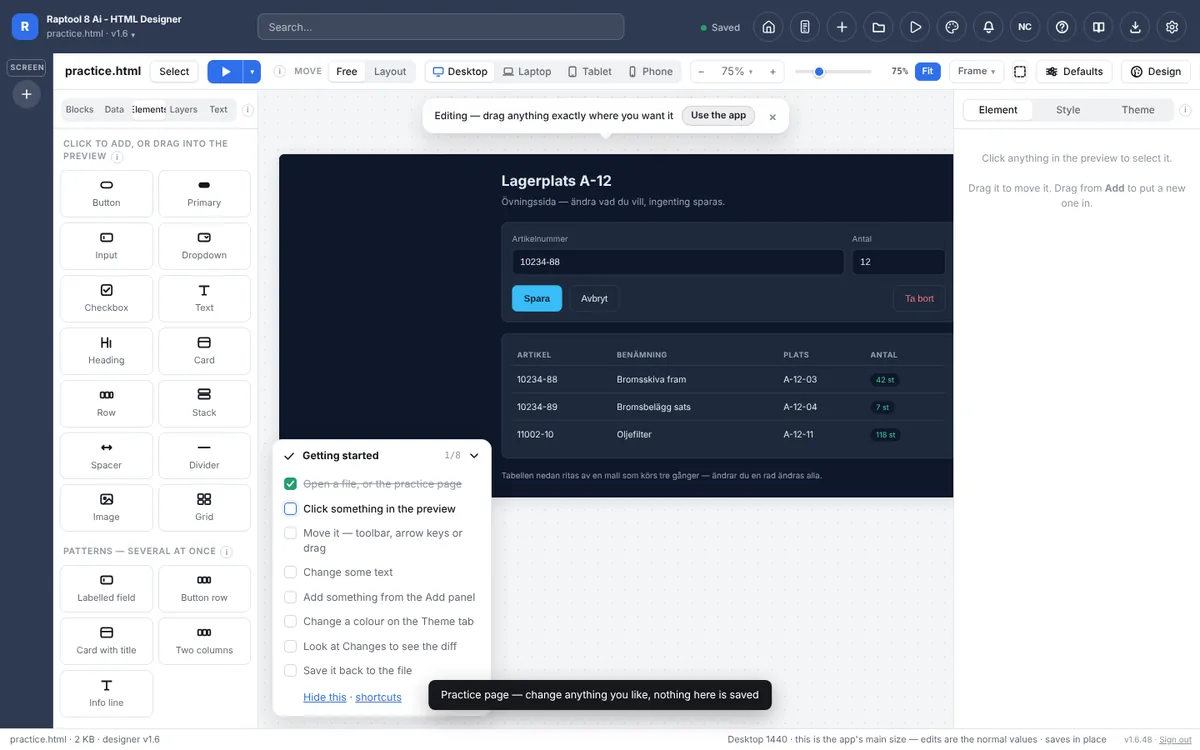
The top bar
| Button | What it does |
|---|---|
| Home | Your apps as cards with search, and + New app. |
| + New app | Start a new HTML app or Raptool 8 project (see below). |
| Open folder | Pick the folder your app is in, then the file. The browser asks once whether the page may edit files there: allow it, or the designer can only read. |
| Play | Runs the app in a window over everything, on a device size and frame you choose (phone, handheld, tablet, laptop, PC or your own size). Back is top left. |
| Design styles | The colours, fonts, corners and shadows of the app, per element, with a live phone preview. |
| Bell | Diagnostics: what works in this browser. |
| NC / Pro | Switches between No-code and Pro. |
| ? | Find anything: every command in one searchable list with its shortcut (Ctrl+K). |
| Book | Guide: plain-English help for each part of the designer. |
| Cogwheel | Settings: help and hover tips, compact panels, Play device and frame, and the designer settings. |
| R7 | Opens the Raptool 7 designer. |
3Start a new app
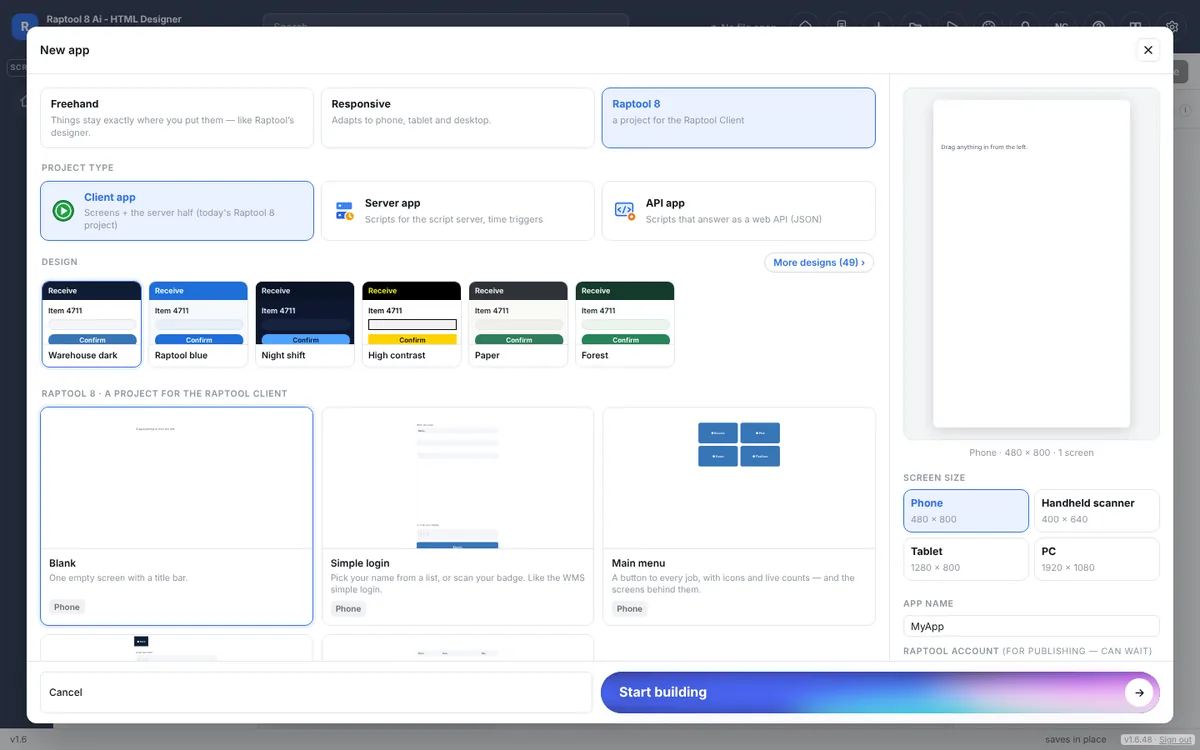
- Press + New app.
- Pick a design style: Freehand (things stay exactly where you put them), Responsive (adapts to phone, tablet and desktop) or Raptool 8 (a project for the Raptool Client).
- For Raptool 8, pick the project type: Client app (screens plus the server half), Server app (scripts for the script server and time triggers) or API app (scripts that answer as a web API with JSON).
- Pick a design (for example Warehouse dark, Raptool blue, Night shift, High contrast, Paper or Forest; More designs shows the rest) and a starter: Blank, or a ready-made screen such as Simple login or Main menu.
- Raptool 8: choose the screen size: Phone 480 × 800, Handheld scanner 400 × 640, Tablet 1280 × 800 or PC 1920 × 1080, and type the app name.
- Press Start building (or Create). A file name already in use gets -2, -3 and so on; nothing is overwritten.
4Designing screens
The screen
| Part | What it is |
|---|---|
| Left: Blocks | Ready-made parts of a screen, such as a login card, a scan bar or a table. Click to add, or drag into the preview. |
| Left: Elements | Single things: Button, Primary, Input, Dropdown, Checkbox, Text, Heading, Card, Row, Stack, Spacer, Divider, Image, Grid; patterns such as Labelled field and Button row; and charts and widgets. |
| Left: Layers | Everything on the screen, nested, each with an eye to show or hide it. |
| Left: Text | Every text on the screen in one list: the fastest way to change or translate a screen. |
| Left: Data | The data the screen uses. |
| Middle | The app running, at the device view you picked: Desktop, Laptop, Tablet or Phone, with zoom, Fit and Frame. |
| Right: Element / Style / Theme | What the selected thing is, how it looks, and the app's own colours and sizes (change one and every screen follows). |
Working
- Select mode: clicks pick elements so you can change them. Use the app: clicks go to the app, as a user would. Use the app to reach a screen, then Select to change it.
- Move: Free (drag anything exactly where you want it) or Layout (move within the layout).
- Undo and redo, Changes shows what you changed, Save writes it into the file. The first save of a session also keeps a backup copy of the file.
- In No-code, a selected element shows big buttons for what people usually do: change the text, change the colour, what happens when it is tapped, hide or show it, and delete it.
5Raptool 8 projects
- A Raptool 8 project has screens, and functions made of steps. The second column switches between Screen (the screen's controls), Functions (this screen's functions, + New function, and the app's server functions) and Actions.
- In a function, Add a step, Child and Wizard… add steps; the arrows move or indent them.
- While a function is open, the left panel shows the actions in groups: Wizards, Flow and logic, Values and expressions, Screens and navigation, Data and tables, Server and network, Device, Files, App, and new actions that need a newer Raptool Client.
- A Server app holds scripts for the script server; its steps are edited the same way.
- Play runs the app with the real Raptool 8 player. Calls to the server need the script server.
- Open from activation key opens an existing Raptool 8 app from its activation key.
Publish
- Publish sends a Raptool 8 app to the Raptool 8 app server. Your user name is filled in from the project; the password is typed in the dialog each time and never stored.
- Dry run lists every request that would be sent, in order, with passwords masked. Nothing is sent.
- Register the timers (off by default) also sends the app's time triggers.
- Publishing to Server 5 makes a Raptool Client package of a client app.
6Raptool 7 designer
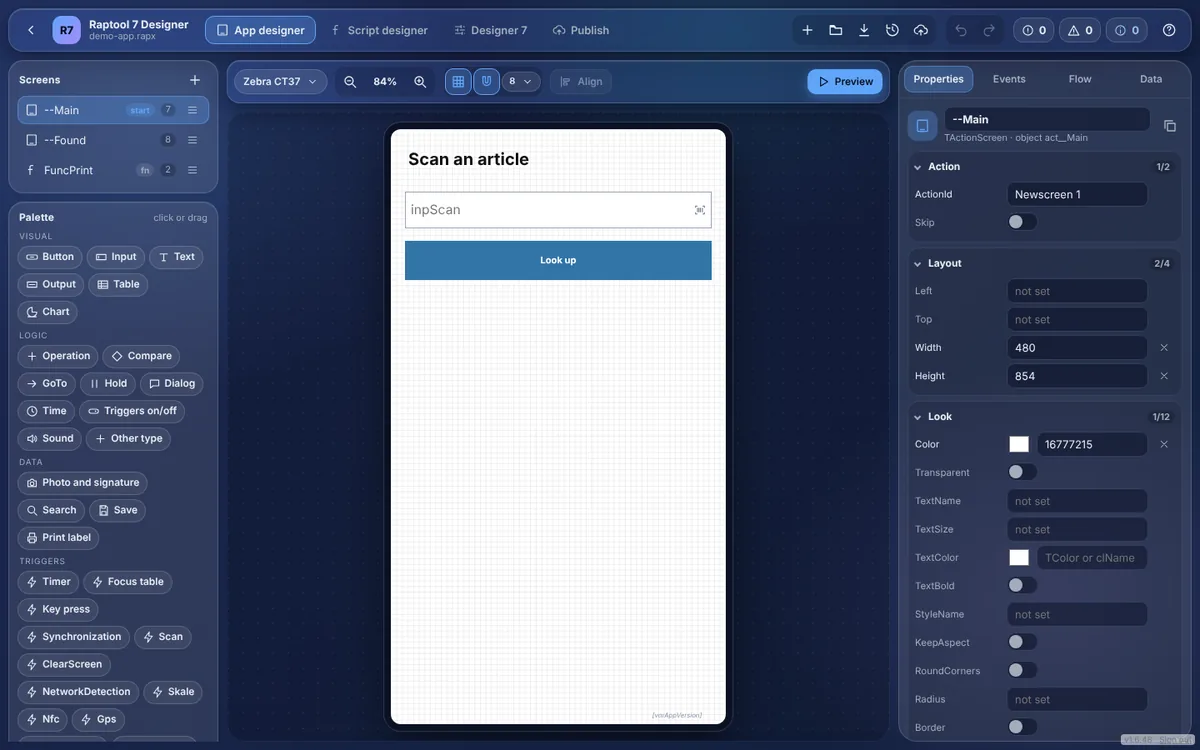
Press R7 in the top bar. The Raptool 7 designer opens .rapx apps and .rapscript scripts and writes them back byte for byte: everything you do not edit stays exactly as it was. Its tabs are on one row: App designer, Script designer, Designer 7 and Publish; the arrow at the top left goes back.
App designer
- New app, Open .rapx or Demo app.
- Left: the Screens (the start screen is marked) and the Palette: Visual (Button, Input, Text, Output, Table, Chart), Logic (Operation, Compare, GoTo, Hold, Dialog, Time, Triggers on/off, Sound), Data (Photo and signature, Search, Save, Print label) and Triggers (Timer, Scan, Synchronization, Key press, RFID and more). Click or drag.
- Middle: the screen on a device (for example Zebra CT37), zoom, grid and snap, Align and Preview. The preview follows the flat-app rules: a fixed screen without scrolling.
- Right: Properties, Events, Flow (GoTo targets) and Data of what is selected.
- The counters in the top bar show errors, warnings and notes from the check: unknown GoTo targets, duplicate names, missing ActionIds and more, in plain English.
Script designer
New script, Open .rapscript or Demo script. The script is an action tree: drag to reorder, a form per action, variables and search.
Designer 7
The tools of the Windows Designer 7, for the open app: Wizards (Sync, Table, Lookup, Dropdown, Compare, Output to input, Multi change, Change colors, Auto completion, Show color differences), Settings, Translations, History (a revision on every save), Styles, Explorer (scripts, images, sounds, videos, keyboards), Compile and Upload.
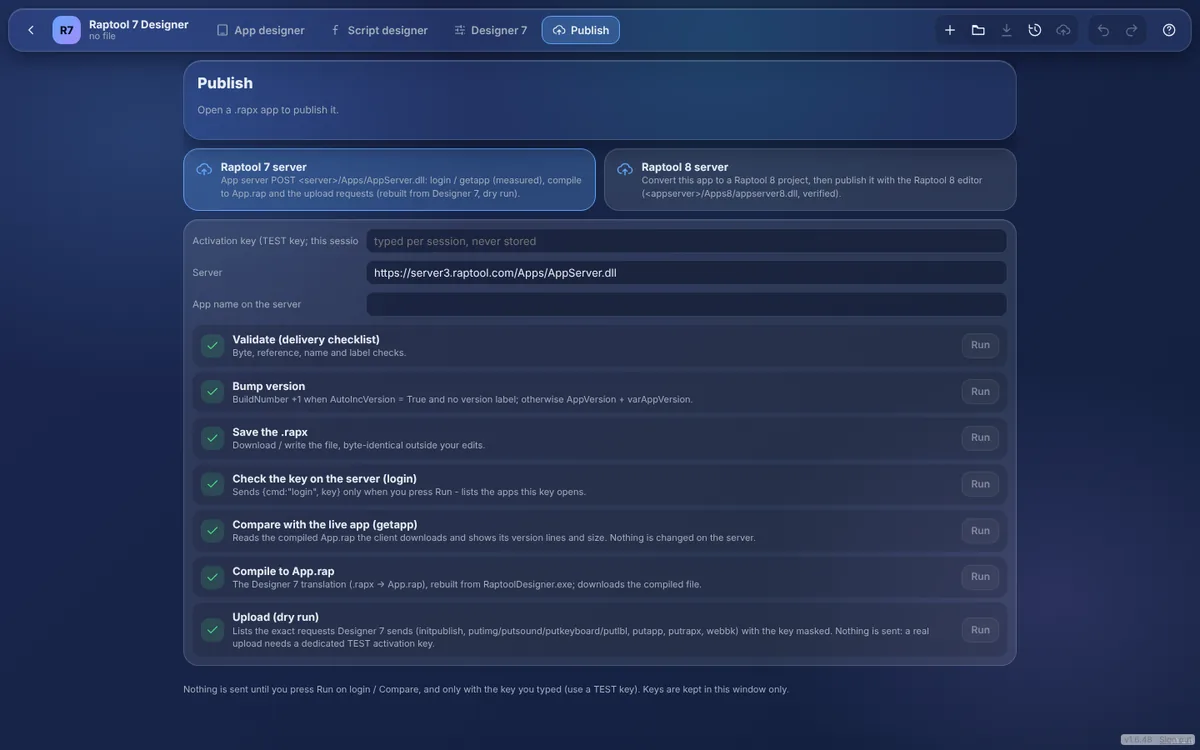
Publish
| Step | What it does |
|---|---|
| Validate | The delivery checklist: byte, reference, name and label checks. |
| Bump version | Raises the build number or the app version. |
| Save the .rapx | Downloads or writes the file, unchanged outside your edits. |
| Check the key on the server | Signs in with the activation key you type and lists the apps it opens. Sent only when you press Run. |
| Compare with the live app | Reads the compiled app the Client downloads and shows its version and size. Nothing is changed on the server. |
| Compile to App.rap | Makes the compiled app file and downloads it. |
| Upload (dry run) | Lists the requests an upload would send. Nothing is sent. |
- The activation key is typed per session and never stored.
- Raptool 8 server: Convert to Raptool 8 turns the app into a Raptool 8 project, which you then publish from the Raptool 8 editor.
7When something is wrong
| What you see | What to do |
|---|---|
| The designer can read but not save | Open the folder again and allow the browser to edit files there. |
| Opened over the web, Save downloads a file | A web page cannot write to your disk without a folder: open the folder first, or use the designer in the Raptool Client. |
| Something does not work in this browser | Press the bell (Diagnostics) to see what the browser supports. Use a current Chrome or Edge. |
| A check shows errors in the Raptool 7 designer | Click the error counter in the top bar to see each problem and where it is. |
Raptool HTML Designer user manual 1.0 · Raptool/manuals/html-designer · v2.0.476