1About the Raptool Account and Raptool Hub
- Every person has one Raptool Account: one e-mail and one password for the Raptool Client, every Raptool app and the Raptool Hub.
- Each app keeps its own sign-in screen, but behind it the app asks the Hub. Apps never keep a copy of your password.
- The Raptool Hub (
https://hub.Raptool) is where access, companies, licences, users and devices are managed.https://apps.Raptoolis the same Hub. - One person = one account, one company = one company in the Hub.
2Signing in
- Type your e-mail (or user name) and password on the app's sign-in screen or on the Hub.
- If you are already signed in to the Hub or the Raptool Client, web apps open straight away (single sign-on).
- If you have access in several companies, choose the company.
- Several wrong passwords pause signing in for 15 minutes.
Messages you may see
| Message | What to do |
|---|---|
| Wrong email or password | Try again, or use Forgot password |
| Your Raptool account has no access to <app> | Ask your administrator to give you access |
| The licence for <app> at <company> has ended or is cancelled | Contact your administrator |
| Your administrator set a temporary password | Choose your own password (see below) |
A temporary password
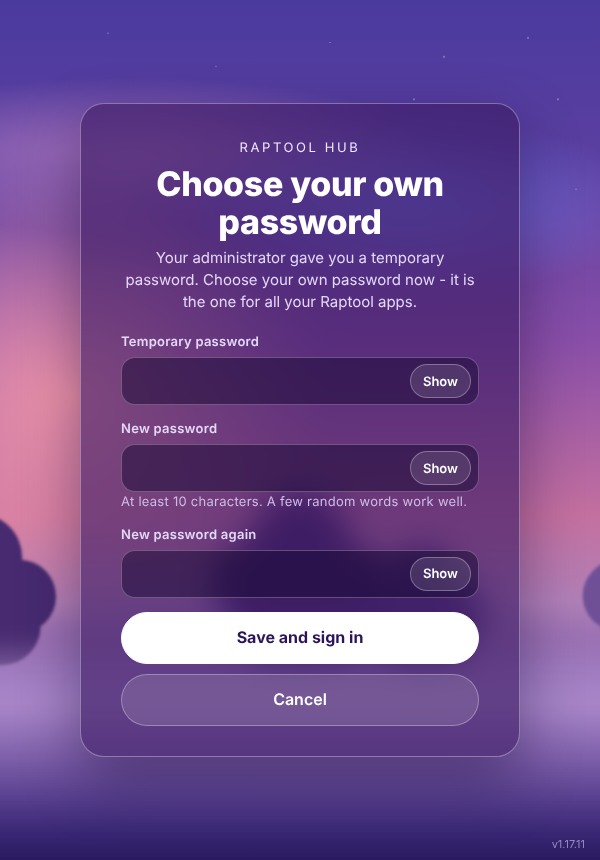
When an administrator gave you a temporary password, the sign-in page asks you to choose your own: type the temporary password, the new one twice (at least 10 characters; a few random words work well), and press Save and sign in. You go straight on to the app.
3Two-step sign-in (2FA)
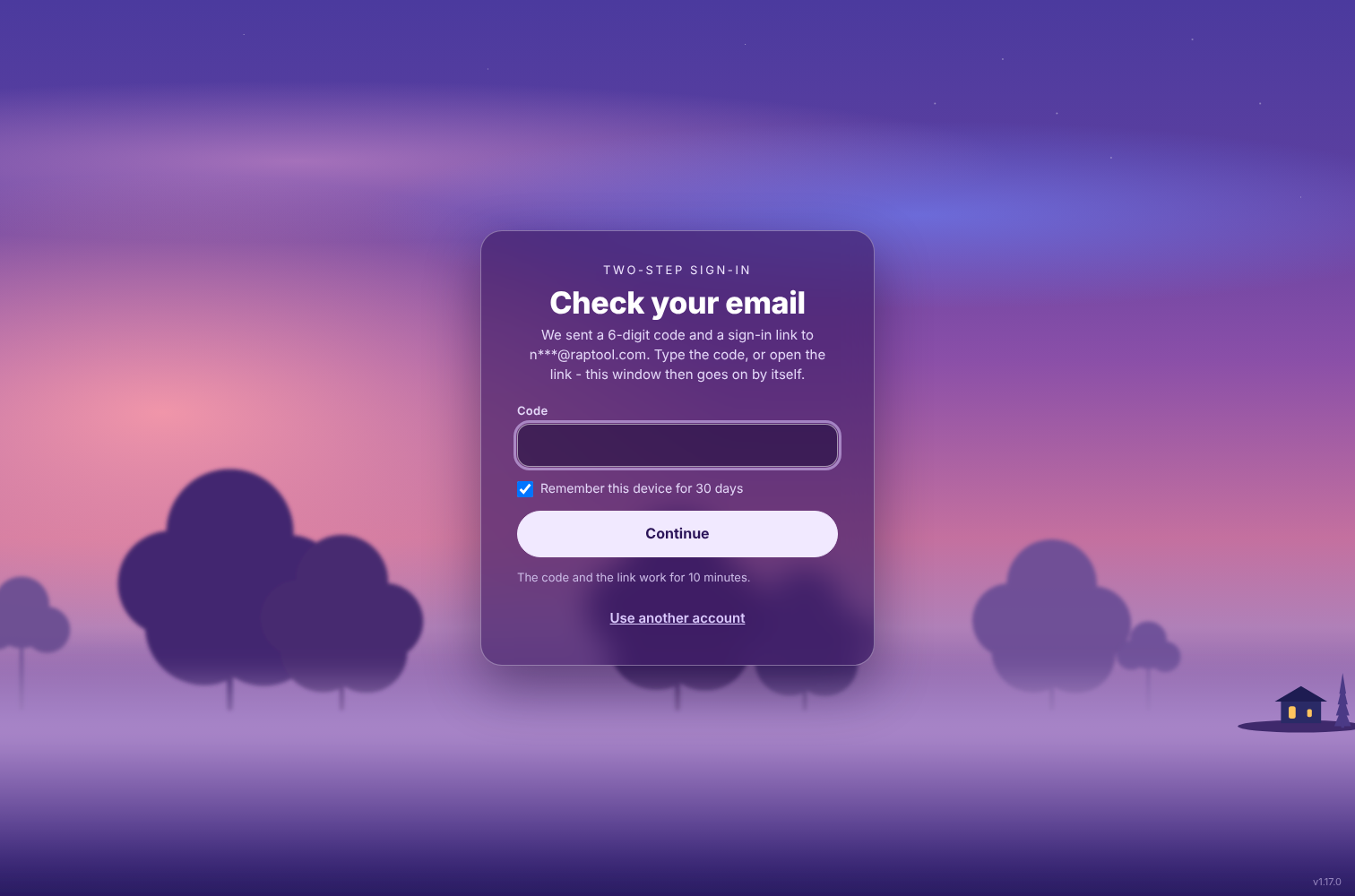
- After the password, the Hub sends you an e-mail with a 6-digit code and a sign-in link.
- Type the code and press Continue, or open the link (also on your phone): the waiting window goes on by itself.
- The code and the link work once, for 10 minutes.
- Keep Remember this device for 30 days ticked to skip the code on this browser. Using it again within 30 days keeps it remembered.
- A Raptool Client device passes two-step sign-in once and stays signed in until it is revoked.
- Who must use 2FA is set per company: Off, Admins only (people with the Owner or Admin role) or Everyone. Raptool staff always use it.
4Forgot or change your password
Forgot password
- Press Forgot password? on the sign-in screen (or open
https://hub.Raptool/id/forgot). - Type your e-mail. You get an e-mail with a link.
- Open the link and choose a new password.
Change password
- In the Hub: My password at the bottom of the left menu: current password, new password twice, Change password.
- On My Raptool:
https://hub.Raptool/id/my/password. - Changing your password signs your other devices out.
5My apps
My Raptool (hub.Raptool/id/my)
- One tile per app you can use, with the company, your role, the licence state and end date, and an Open link. Apps that only run in the Raptool Client say "Opens in the Raptool Client".
- More Raptool apps lists apps you can try: Start free trial, Apply for a test account (Raptool approves and e-mails you) or Start – free. You are asked for the company name first.
My company › My apps (company admins)
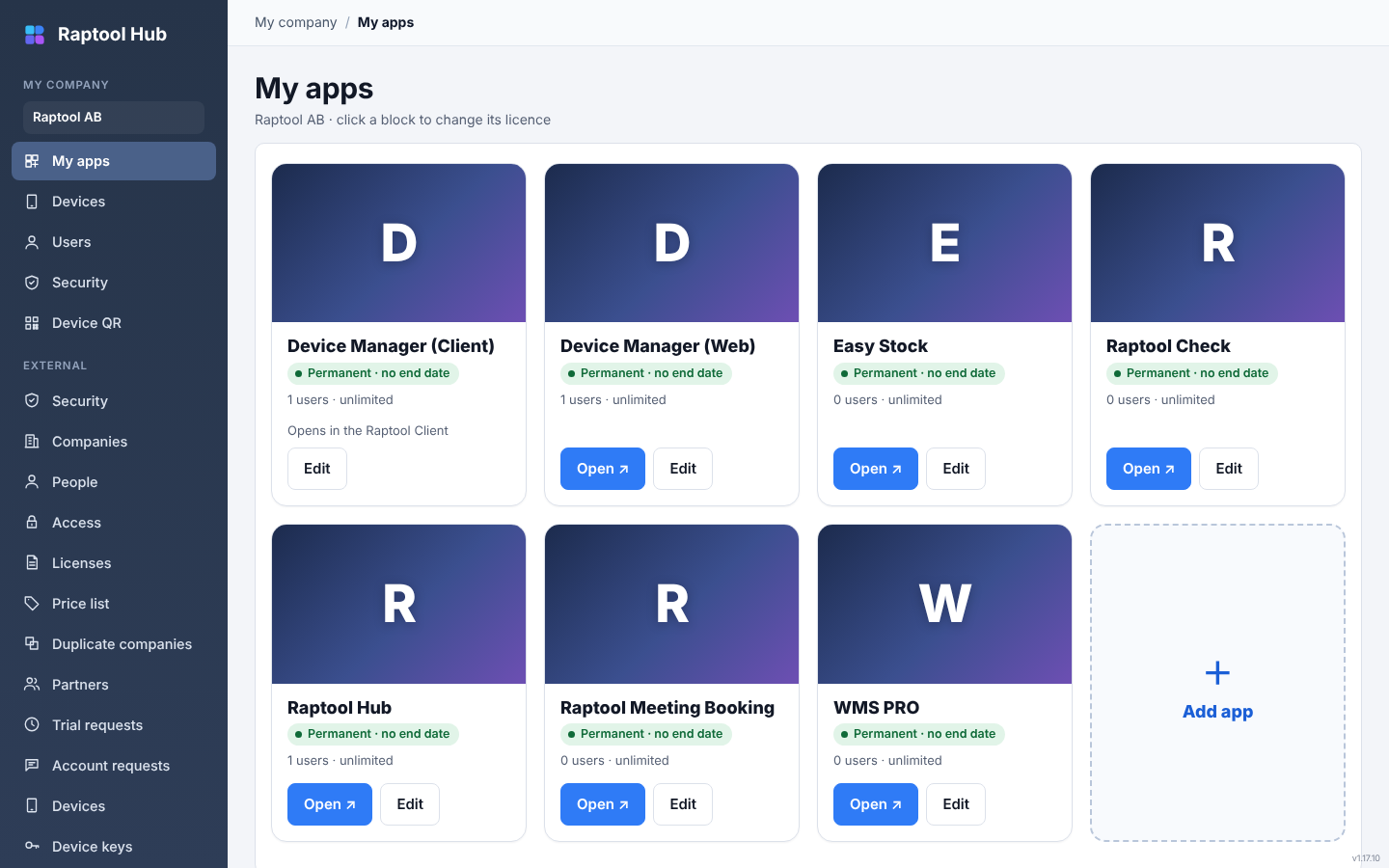
One block per app of the company, with the licence (for example "Permanent · no end date" or a trial end date) and users in use against seats. Open starts the app; click a block or Edit to change its licence; Add app adds another.
The same apps show in the Raptool Client's app list by themselves.
6My company (company admins)
The left menu under My company holds My apps, Devices, Users, Security and Login QR.
Users
- The people of the company, their role per app, and their status.
- Set password (key icon, or in the person dialog): choose Permanent (default) or Temporary (they must choose their own at the next sign-in). A temporary password shows a Temp chip; Make password permanent removes it.
Devices
- Every Raptool Client device of the company: name, number, model, OS, Client version, last person, last app, hardware scanner, battery and last seen. Tiles: Devices, Online, Active, Idle, Scanners, Low battery.
- New devices get names like "<Company> 1", "2"… Rename gives them your own names; Import renames many at once.
- Click a device for its apps and history. Signed-in people per device shows who uses which device; Block stops a device.
Security
- 2FA for <company>: Off, Admins only or Everyone.
- Support access: in Live mode Raptool support asks with a reason and a number of hours, and your admins Approve or Deny. Access ends by itself. Every request and access is listed.
- People: who uses 2FA; Sign out everywhere ends all sessions of a person.
- Devices: Raptool Client devices and remembered browsers; Revoke one.
- Sign-ins: every sign-in of your people, newest first.
Login QR
Every app block has a Login QR chip on its picture: one click shows the QR code for that app. It signs a shared device (for example a handheld scanner) in to an app for your company. The code refreshes itself every 30 seconds and can be limited to a number of devices. Devices set up this way and the QR codes can be revoked. Step by step: Sign in with a Login QR.
Your devices (My password page)
Where you are signed in: browser or device, OS, first and last use and state. Revoke a device you do not know, or Sign out everywhere.
Raptool Account and Hub user manual 1.1 · Raptool/manuals/hub-account · v2.0.476