1About WMS PRO Self-Scan
- Self-Scan lets your customers order by scanning. They sign in on their phone, scan the items they want and send the basket to your warehouse.
- The basket arrives in WMS PRO as a normal customer order, ready to pick (status PICK).
- It has two parts: the phone app for your customers and the admin for your staff. Both are web pages under your WMS PRO address (/selfscan/ and /selfscan/admin/), so nothing needs to be installed.
- It works with the phone camera, with the hardware scanner of a handheld, or by typing an item number.
- Self-Scan only reaches the items, customers and its own customer orders of the WMS PRO company it is connected to.
2Getting started (admin)
Before customers can scan, an admin connects Self-Scan to WMS PRO and adds the customers who may use it.
- In WMS PRO open Settings → Integration, switch the integration on and copy the API key.
- Open the Self-Scan admin and sign in with your Raptool Account.
- Settings: paste the app key for wms-selfscan that you created in Raptool Hub (page App keys) and press Save. Test connection checks it. The key needs: Sign people in, Manage access, Register customers and Send email. It is stored encrypted.
- Warehouses: press Add warehouse, enter the WMS company ID and paste the integration key. Last test shows Connected or Failed.
- Logins: press Add login and enter the customer's e-mail, the warehouse and the customer number in WMS PRO.
The customer gets access to Self-Scan in Raptool Hub automatically when you add the login, and loses it when you close the login.
3Scanning and sending an order (customer)
Sign in
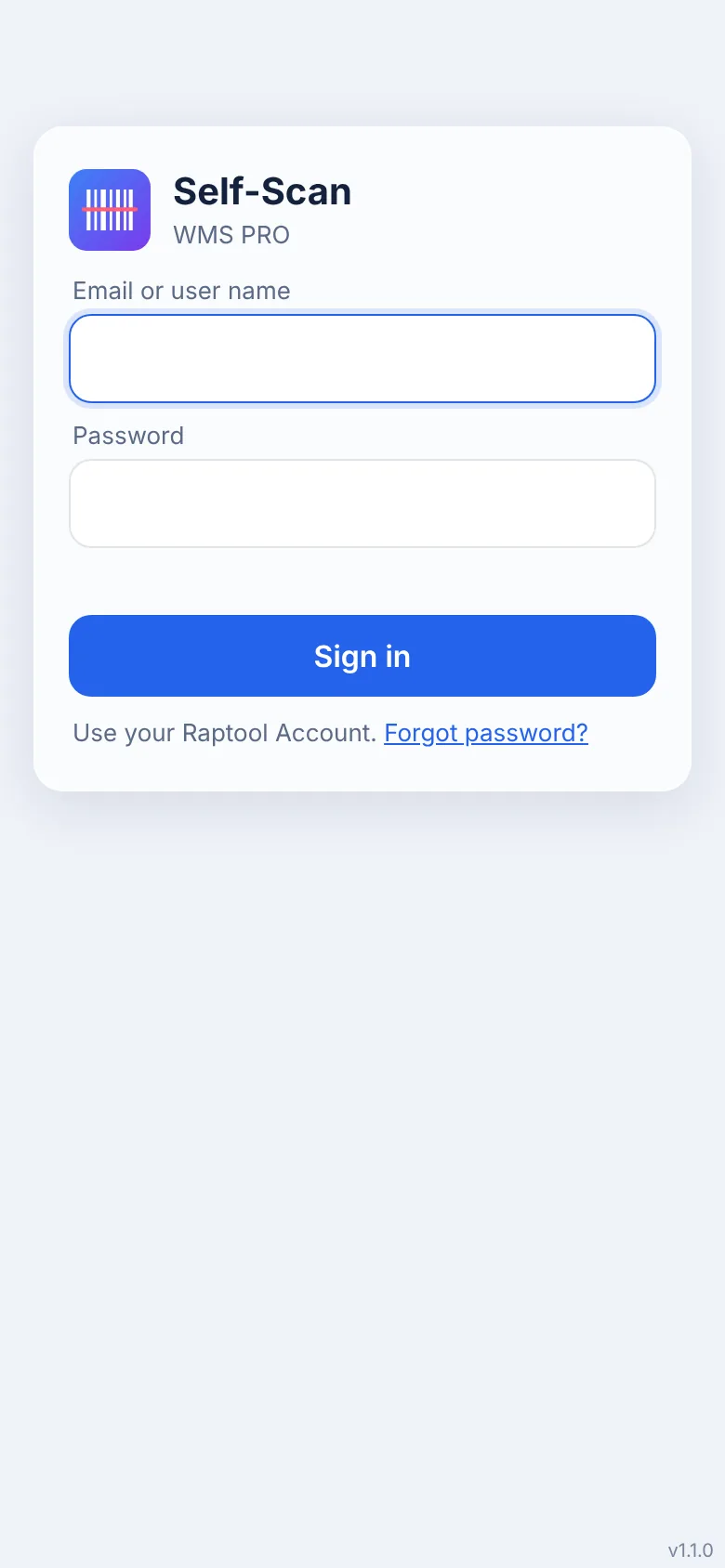
- Open Self-Scan and sign in with your e-mail (or user name) and password. It is your Raptool Account; Forgot password? resets it.
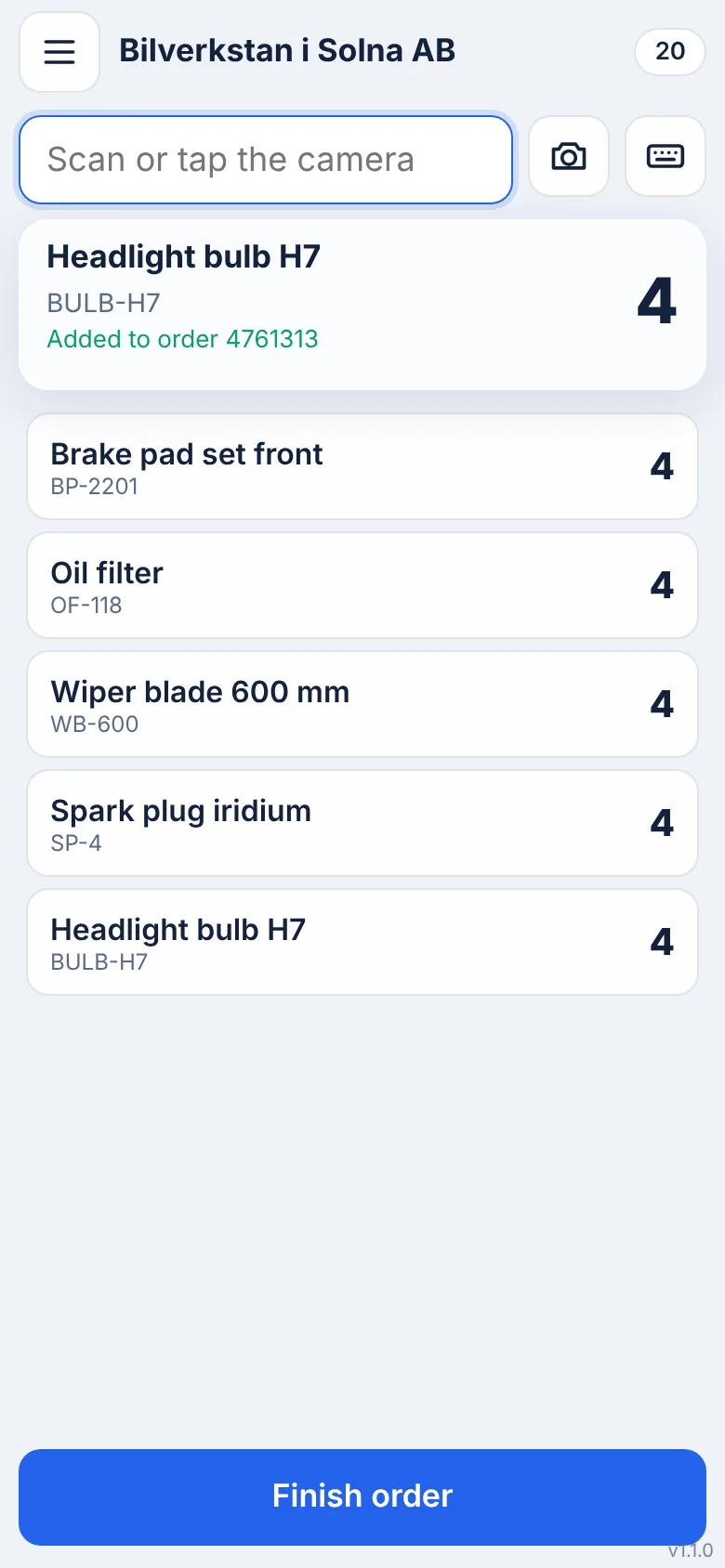
- The top bar shows your company and the number of pieces in the basket.
Scan items
- Scan a barcode with the hardware scanner, or tap the camera button and scan with the camera.
- No barcode? Tap the keyboard button (or ☰ → Type an item number) and type the item number.
- The item goes to the top of the list with its quantity. Scanning it again adds one more.
- An unknown code shows a message and nothing is added.
Change or remove a line
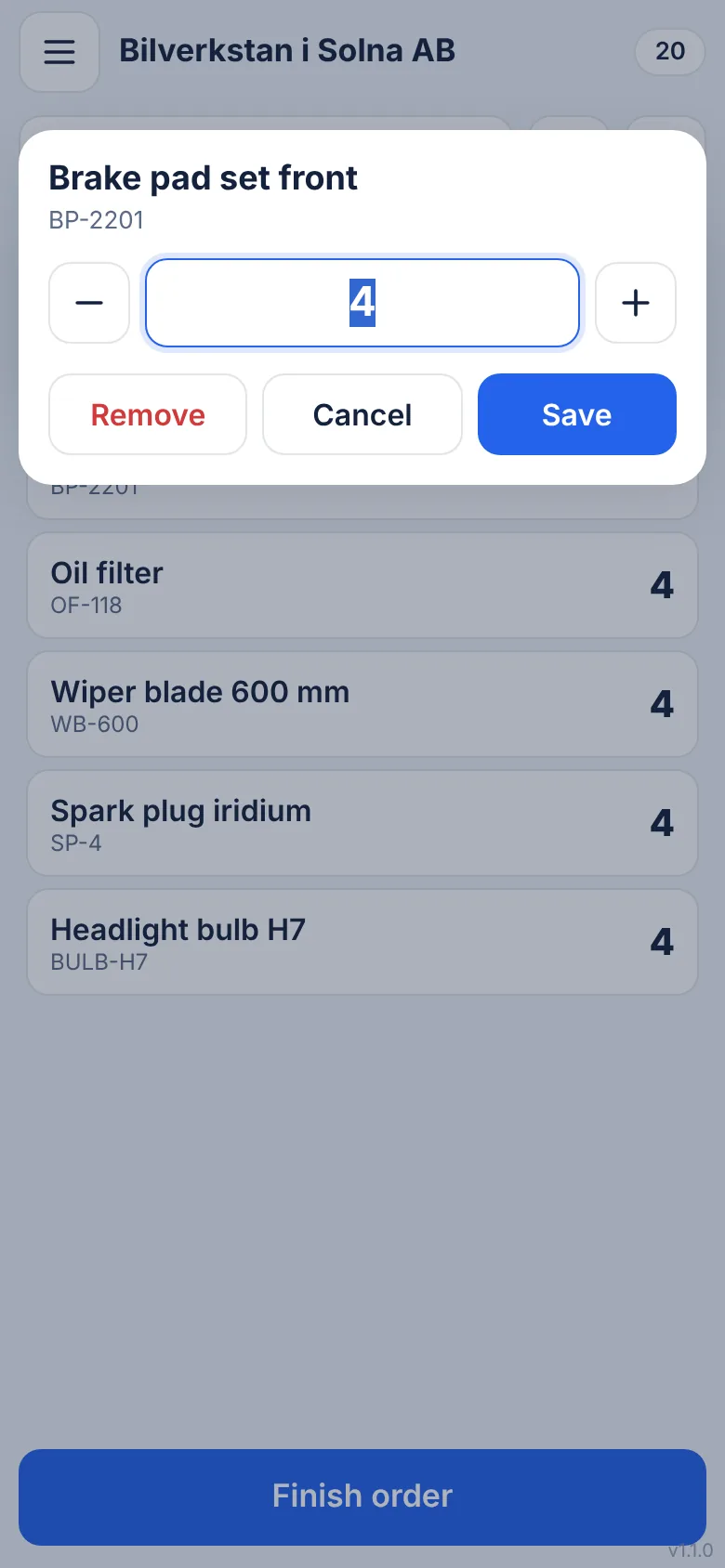
- Tap a line to open it. Use − and + or type the quantity, then press Save.
- Remove takes the line out of the basket. Cancel closes without changes.
Send the order
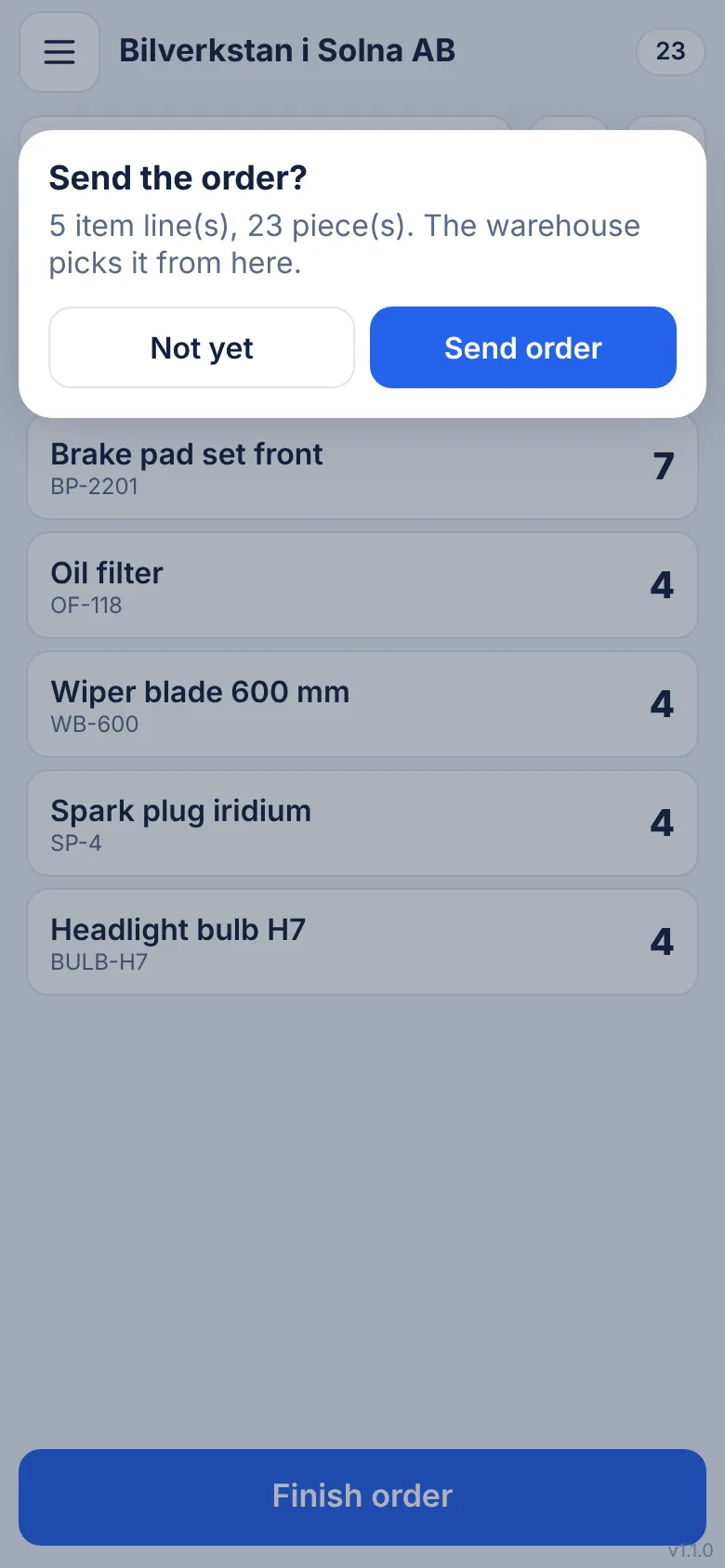
- Press Finish order.
- The question shows how many lines and pieces you send. Press Send order (or Not yet to keep scanning).
- A green message confirms that the order was sent to the warehouse. The basket is empty again for the next order.
Sign out
☰ → Sign out.
4The admin
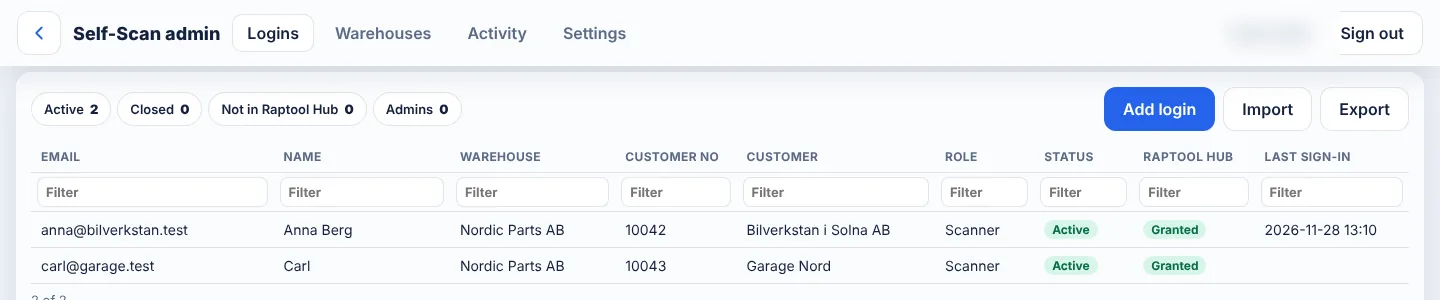
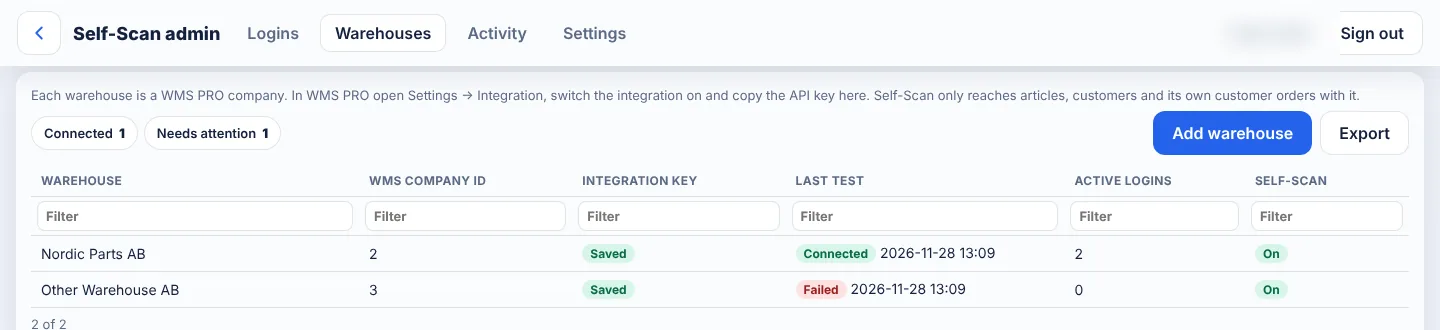
The admin has four tabs on one row: Logins, Warehouses, Activity and Settings. Raptool staff and people with the admin role can open it.
| Tab | What it is for |
|---|---|
| Logins | The customers who may scan: e-mail, name, warehouse, customer number and customer, role, status, Raptool Hub access and last sign-in. Chips filter Active, Closed, Not in Raptool Hub and Admins. Add login, Import and Export. |
| Warehouses | Each warehouse is a WMS PRO company: company ID, integration key (saved), last connection test, active logins and whether Self-Scan is on. Chips filter Connected and Needs attention. |
| Activity | A log with time (UTC), who, what, warehouse, customer number, order and detail: sign-ins, failed sign-ins, sign-outs and sent orders. Chips filter Orders sent and Failed sign-ins. Export. |
| Settings | The Raptool Hub app key, Save and Test connection. |
- Every table: click a heading to sort, drag its edge to resize, right-click a heading to hide or show columns, and filter per column.
- Click a login to edit it or close it. A closed login can no longer sign in.
- Import reads CSV, TSV, TXT and JSON files.
5In WMS PRO
- A Self-Scan basket is a customer order on the customer number of the login. While the customer is scanning it is marked as an open Self-Scan order; when it is sent it becomes a normal order to pick.
- Pick it like any other order, in the backend or with WMS Mobile.
- Self-Scan needs WMS PRO 2.33.8 or newer. With an older WMS PRO the admin says that the warehouse system is too old for Self-Scan.
6When something is wrong
| What you see | What to do |
|---|---|
| Warehouse shows Failed | Check that the integration is on in WMS PRO (Settings → Integration) and that the key was pasted in full. Press the test again. |
| A customer cannot sign in | Check that the login is Active and shows Granted under Raptool Hub. The customer can reset the password with Forgot password?. |
| "Raptool Account cannot be reached right now" | Raptool Hub did not answer. Try again in a moment. |
| An item is not found | The code is not on any item in WMS PRO. Add the barcode to the item in WMS PRO, or type the item number. |
WMS PRO Self-Scan user manual 1.0 · Raptool/manuals/self-scan · v2.0.476