1What the Raptool Client is
The Raptool Client is the app that runs your Raptool apps on PCs, phones, handhelds and tablets. You sign in once with your Raptool Account and open every app your company gives you.
2Download and install
All downloads are on one page: Raptool/files.
Windows PC
- Open Raptool/files and click Raptool Client for PC (.exe).
- Run the downloaded installer.
- Start Raptool from the Start menu.
Updates install by themselves. When one is ready, a bar says Update ready – Restart.
Android
- On the phone or handheld, open Raptool/files.
- Tap Google Play, or download Raptool Client for Android (.apk).
- If Android asks, allow installing from the browser, then tap Install.
Your admin may give you the managed version instead (for remote help through Device Manager).
iPhone and iPad
- Open Raptool/files on the iPhone or iPad.
- Tap App Store and install the Raptool Client.
If your company uses the test (TestFlight) version, ask support for an invite.
Mac Coming soon
The new Raptool Client for Mac is not on the download page yet. The old Raptool 7 Mac client is in the Raptool 7 part of Raptool/files.
3First sign-in with your Raptool Account
New user: set your password first
- Your admin adds you in Raptool Hub and sends an invite.
- Open the e-mail and click the link to choose your password.
If your admin gave you a temporary password, the Client asks you to Choose your own password the first time. Then it goes straight on.
Sign in
- Open the Raptool Client.
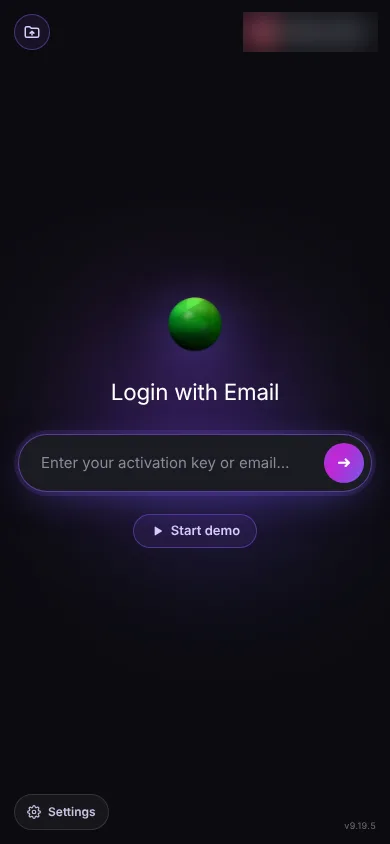
- Type your work e-mail in Enter your activation key or email… and tap the round arrow.
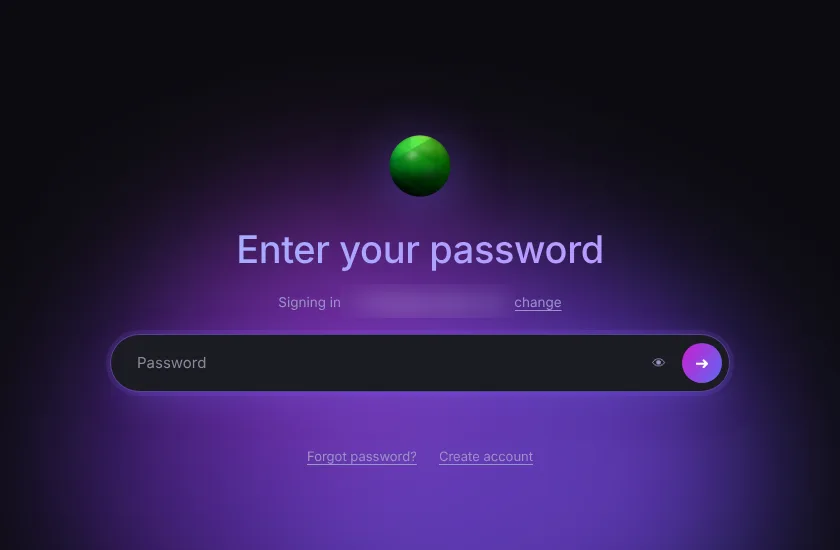
- Type your password and tap the arrow again.
- Your apps load. Done.
Stay signed in: the Client keeps you signed in on this device until you sign out. There is no separate "Remember me" box.
Two-step sign-in (2FA)
If your company has 2FA turned on, signing in on the web (for example hub.Raptool) sends you an e-mail with a 6-digit code and a link.
- Type the code, or click the link in the e-mail. Both work for 10 minutes.
- Tick Remember this device to skip the code on this browser for 30 days.
The 2FA step inside the Raptool Client app: Coming soon
Forgot your password?
- Tap Forgot password? on the password screen, or go to https://hub.Raptool.
- Open the reset e-mail and choose a new password.
Your admin can also send you a password reset from Raptool Hub.
4Set up a device: QR code or activation key
Shared devices (handhelds, kiosks, tablets) are often set up for one company and app without a personal sign-in.
With a QR code
- Your admin opens Raptool/account → the app → Get started → Show device QR.
- On the device, tap Scan QR code on the start screen (or scan with the phone camera).
- The Client shows Setting up this device… and then opens the app.
The device QR changes every 30 seconds and works for up to 5 devices for 24 hours. A code that is not a Raptool code shows This QR code is not a Raptool app code.
With an activation key
- Type the key in Enter your activation key or email….
- Tap the round arrow. The app opens.
To check: Settings → Account shows Device enrolled for your company and app, with a Remove this device button.
5The start screen and your apps
- Middle: the input for e-mail or activation key, and Scan QR code.
- Top right: your name. Tap it for Server apps, Settings and Sign out.
- Bottom left: Settings (cogwheel). Bottom right: the version number.
- Phones: Start demo opens a demo. PC: a Demo button bottom right, and Local Apps plus an open-file button top left.
Find and open an app
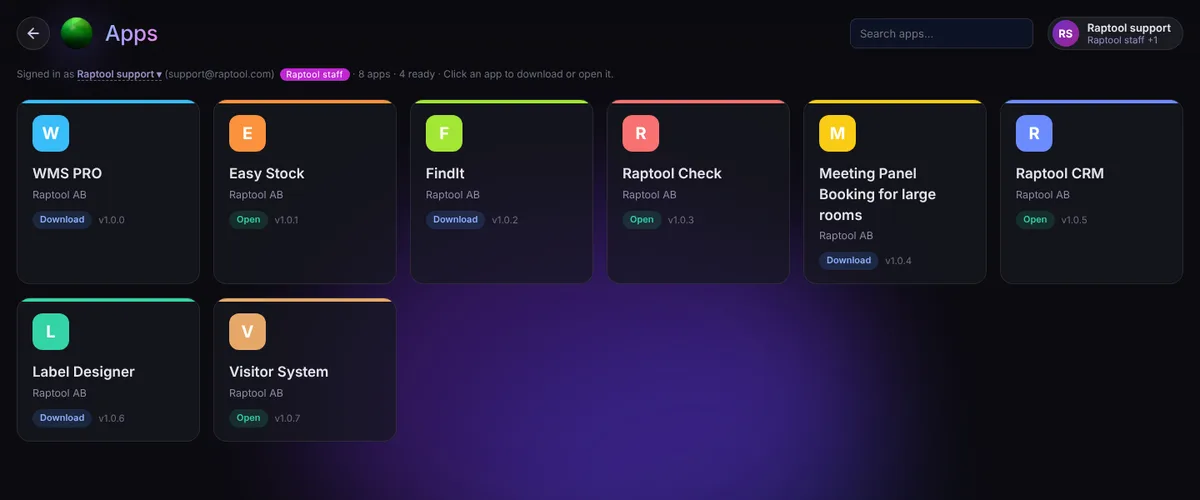
- Tap your name (top right) → Server apps.
- Type in Search apps… to find an app fast.
- Tap the app card. Download gets it first; Open starts it.
- Refresh: the round button bottom right (on iPhone: pull the list down). New apps from your admin show up then.
- More than one company? Each company has its own tab at the top.
- Last app: the app you used last opens by itself when the Client starts. Turn this off in Settings.
- Favourites: Coming soon
Inside an app: the quick menu
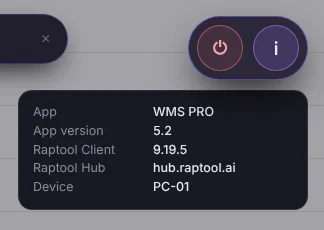
- Swipe down with two fingers, or hold a top corner for 1 second. On a PC: right-click a top corner or press Ctrl+Shift+I.
- Two buttons appear: i (Information: app, versions, device) and Log out of app (back to your app list).
6Settings
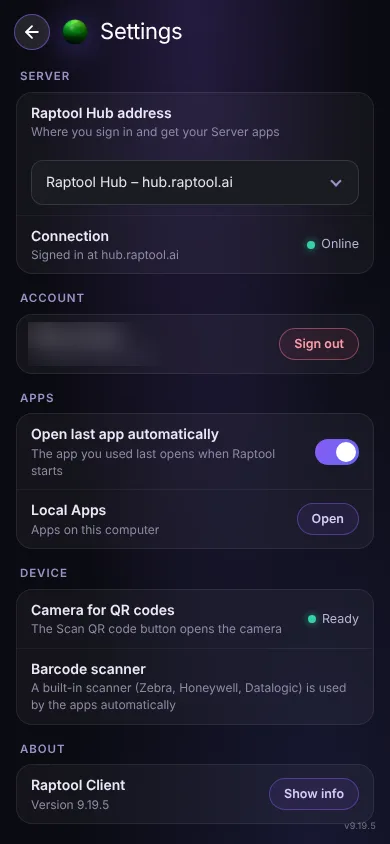
Open Settings with the cogwheel (bottom left of the start screen), or on a PC from the menu under your name.
- Language: Settings → Device → Language (English, Swedish, German). Your admin can also set it from Raptool Hub, or a QR code can carry it. Available on iPhone and iPad; other platforms Coming soon
- Hardware scanner (Barcode scanner): On or Off. On by default on rugged scanners (Zebra, Honeywell, Datalogic and others), Off on normal phones, tablets and PCs. See Scanning.
- Full screen: nothing to set. Apps fill the whole screen by themselves, edge to edge. Each app decides if it may turn sideways; most phone apps stay upright.
- Theme: the Client has one dark look. A theme choice is Coming soon
- Camera for QR codes: shows if the camera is ready.
- Open last app automatically: on or off.
- Raptool Hub address: leave it on hub.Raptool. apps.Raptool is the same Hub.
- Account: who is signed in, and Sign out.
- About: the version and Show info. On a PC also Check now for updates and Install updates automatically.
7Scanning: hardware scanner or camera
Hardware scanner On
For handhelds with a built-in scanner.
- Tap the scan field (no keyboard pops up).
- Press the scan button on the device.
- The code lands in the field and the next field gets focus.
No camera icons are shown in this mode.
Hardware scanner Off
For normal phones and tablets.
- Tap the camera icon in the scan field.
- Point the camera at the barcode or QR code.
- The result fills the field and the app goes on.
Normal fields (quantity, name) always open the keyboard.
Change the mode in Settings → Hardware scanner. Apps pick up the change at once.
8Loading Raptool 7 and Raptool 8 apps
Coming soon This is in testing in the Windows Client and not in the released version yet. On phones and tablets: coming soon.
Raptool 7 apps (.rapx)
With an activation code
- Type the Raptool 7 activation code in the start screen box.
- Tap the round arrow.
From the Raptool 7 tab
- On the start screen, click Raptool 8, then the Raptool 7 tab.
- Pick the Server, check the Device name (your PC name) and type the Activation code. Tick Remember if you want.
- Your apps show as cards. Click one to download and open it.
From a file: click the open-file button (top left) and pick the .rapx file, or drag the file onto the Client.
Raptool 8 apps (Designer 8)
From the app server
- On the start screen, click Raptool 8.
- Pick the Server, type your User name and Password. Tick Remember on this PC if you want.
- Your apps show as cards. Click one to download and open it. Leaving the app brings you back to the list.
With an activation key: type it in the start screen box and tap the arrow.
From a file or folder: open the file (ClientApp.rapapp, .rapproj or .rapgroup) with the open-file button, or on the Apps page open the R8 Local tab and click Add a folder. The R8 Server tab lists your server apps.
Update and remove
- Update: open the app again from the server list. The Client fetches only the files that changed. With no connection, the saved copy opens.
- Remove: on the Apps page, right-click the card (or click its ×) → Remove from list. This only hides it from the list; no file and no server app is deleted.
- Old Raptool 7 Client: still on Raptool/files under Raptool 7.
- QR codes and Raptool Hub app lists for Raptool 7 and 8 apps: Coming soon
9Signing out and switching user
- Leave the app: open the quick menu (two-finger swipe down) → Log out of app.
- Tap your name (top right) → Sign out. Or Settings → Account → Sign out.
- The next person signs in with their own e-mail and password.
A device set up by QR code keeps its company. To undo that: Settings → Account → Remove this device.
10Troubleshooting and reporting a bug
| Problem | Try this |
|---|---|
| An app is missing | Tap refresh (bottom right). Still missing? Ask your admin to give you access in Raptool Hub. |
| Cannot sign in | Check the e-mail address. Use Forgot password?. If it says your administrator set a temporary password, choose your own password first. |
| No connection | Settings → Connection should say Online. Check Wi-Fi. In Raptool Hub address you can pick apps.Raptool (same Hub). |
| "This QR code is not a Raptool app code." | The code is not from Raptool. Ask your admin for a new device QR. |
| The camera does not open | Settings → Camera for QR codes must say Ready. Allow camera access for Raptool in the phone settings. |
| Scanner button does nothing | Turn Hardware scanner On in Settings and tap the scan field first. |
| Old version | PC: Settings → About → Check now, then Restart. Phones: update from the store or download again from Raptool/files. |
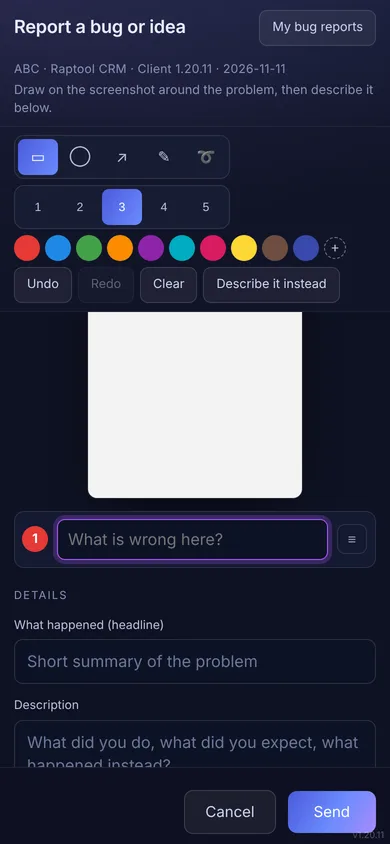
Report a bug from the app (phones)
- In the app, open the quick menu (two-finger swipe down) and tap i.
- Tap Report bug with screenshot.
- Draw on the screenshot where the problem is.
- Write a short headline and what happened. Choose Bug or Idea.
- Check your contact details and tap Send. You get a case number.
My bug reports shows what you sent. On a PC, or if the app will not start, use the support ticket form.
11Where to get help
- Support ticket: Raptool/support-ticket. Describe the problem; we reply by e-mail and you can follow the ticket until it is solved.
- User manuals: Raptool/manuals for every Raptool app.
- Signed in on Raptool? Your account has a Contact support button.
- Remote help: support may ask you to start TeamViewer from Raptool/files.
Raptool Client quick start · Raptool/raptool-client/quick-start · v2.0.476