Support
Set up barcode reader
Raptool apps get barcodes from the built-in scanner of Android handhelds as an intent with the action com.raptool.SCAN. Pick your brand and follow the steps.
Honeywell
Scan settings on the device
Open Scan Settings
Open Settings and find Scan Settings (under Honeywell Settings).
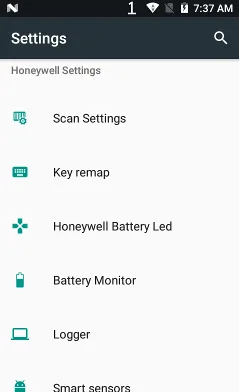
Settings → Scan Settings 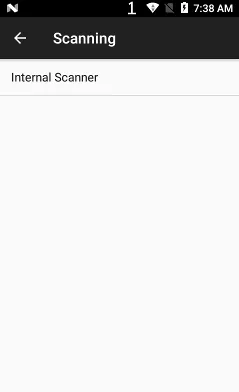
Internal Scanner 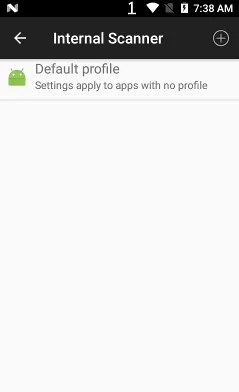
Default profile Data Processing Settings
Open Data Processing Settings. Set Suffix to
\n, and tick Scan To Intent and Data Intent.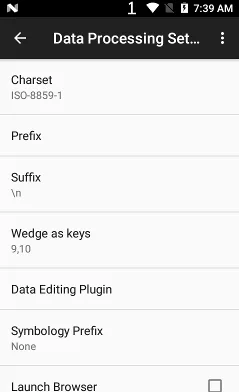
Suffix \n 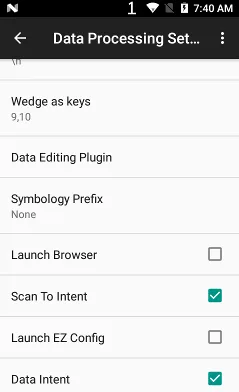
Scan To Intent and Data Intent ticked Set the action
Open Data Intent and set Action to
com.raptool.SCAN.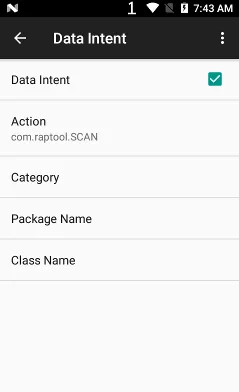
Action com.raptool.SCAN
Honeywell CT37: use the ready-made profile file
The same settings as above in one file, for the Default profile of the internal scanner.
Turn on Provisioning mode
Provisioning mode must be on while you copy the file.
Copy the file to the device
Copy DataCollectionService.xml to
Internal shared storage\honeywell\persist\.Turn Provisioning mode off
Turn it off again when the file is copied.
Zebra
DataWedge on the device
Open DataWedge
Find the DataWedge app on the device and open Profile0 (default).
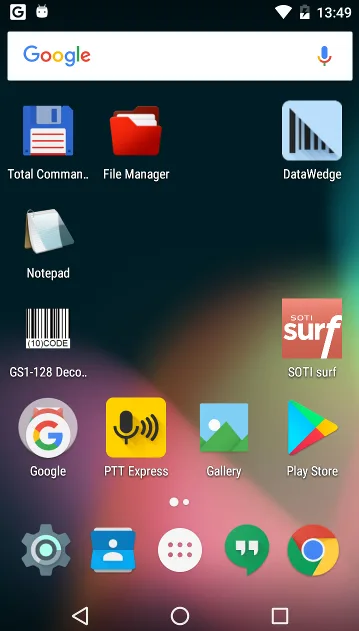
The DataWedge app 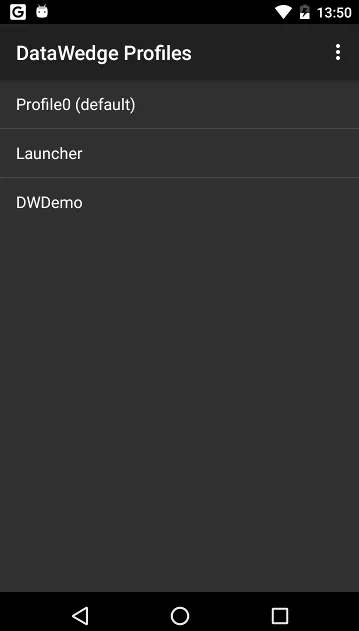
Profile0 (default) 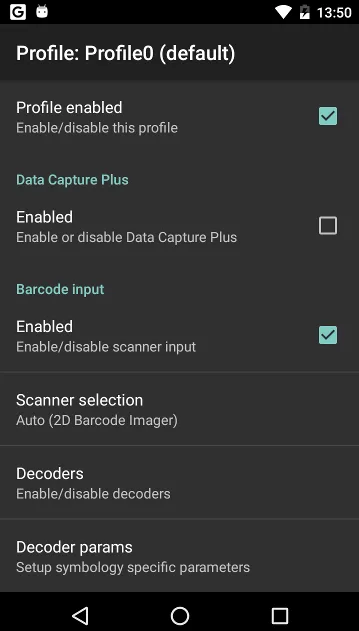
Profile enabled, barcode input on Turn off keystroke output
Under Keystroke output, set Enabled Off.
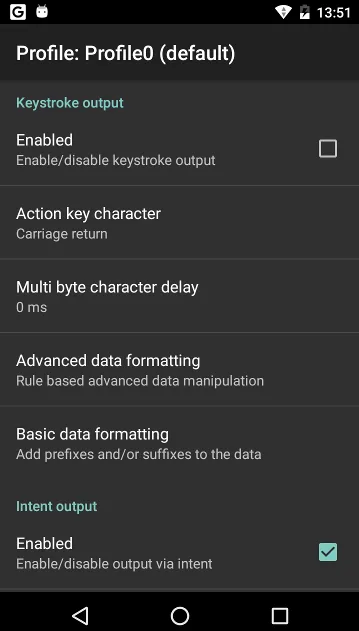
Keystroke output off Turn on intent output
Under Intent output, set Enabled On, Intent action
com.raptool.SCANand Intent delivery to Broadcast intent.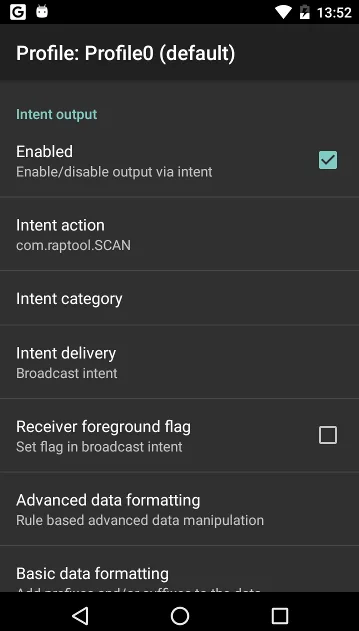
Intent output, action and Broadcast intent 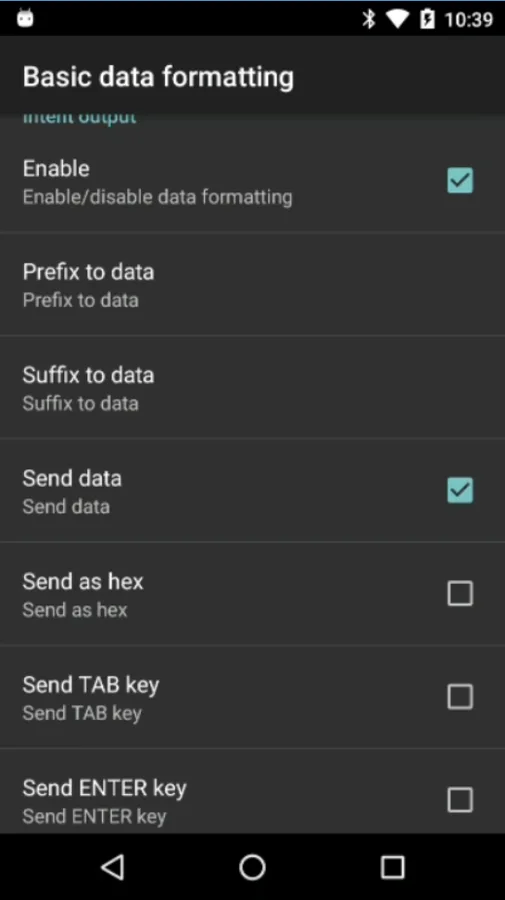
Basic data formatting
Datalogic
Wedge settings on the device
Open Wedge
Open Settings, find Scanner settings and then Wedge.
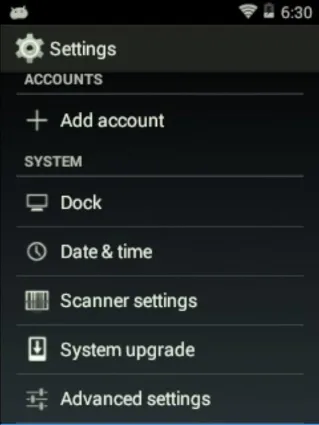
Settings → Scanner settings 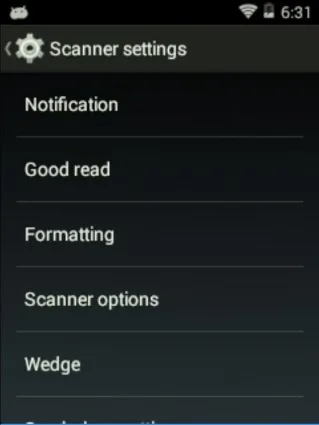
Wedge Turn off keyboard wedge
Set Enable keyboard wedge Off.
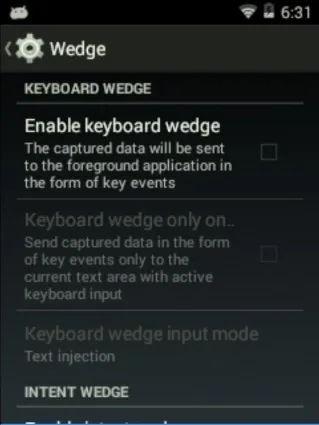
Keyboard wedge off Turn on intent wedge
Set Enable intent wedge On and set up the intent:
- Intent delivery mode: as on the screen
- Intent action:
com.raptool.SCAN - Intent category:
android.intent.category.DEFAULT
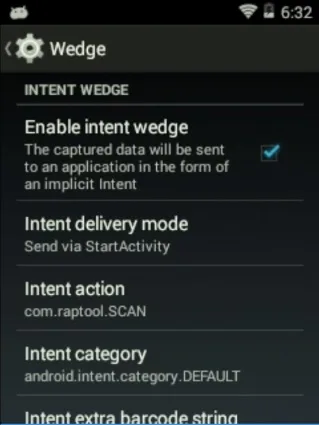
Intent wedge settings 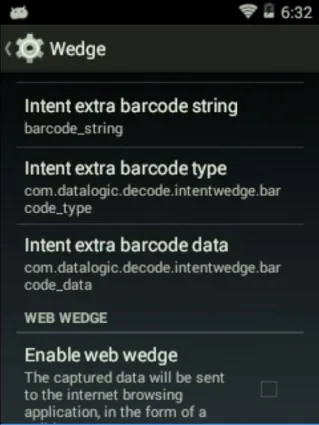
Further down
Newland
Quick Settings on the device
Open Quick Settings
Open the Quick Settings app and select Scan.
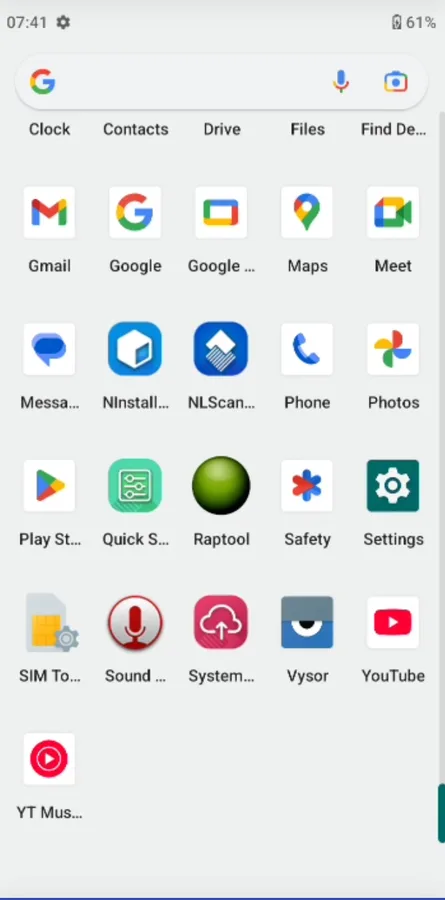
The Quick Settings app 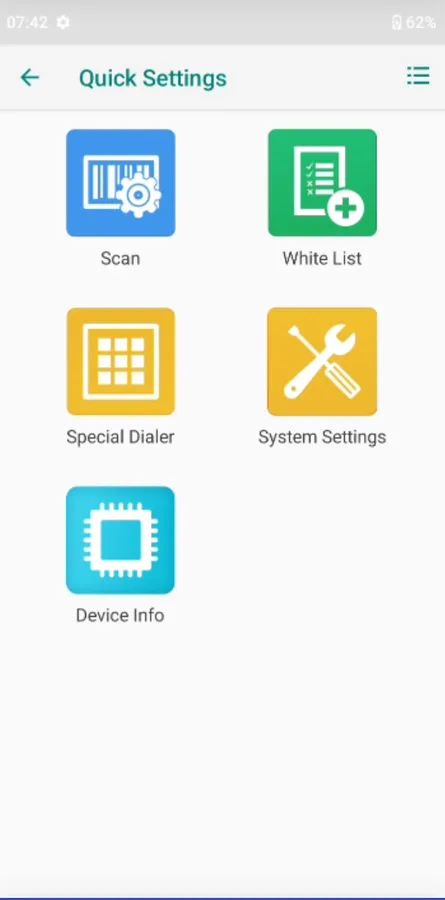
Scan Enable scan and set the output mode
Tick Enable scan. Set Output Mode to Output via API.
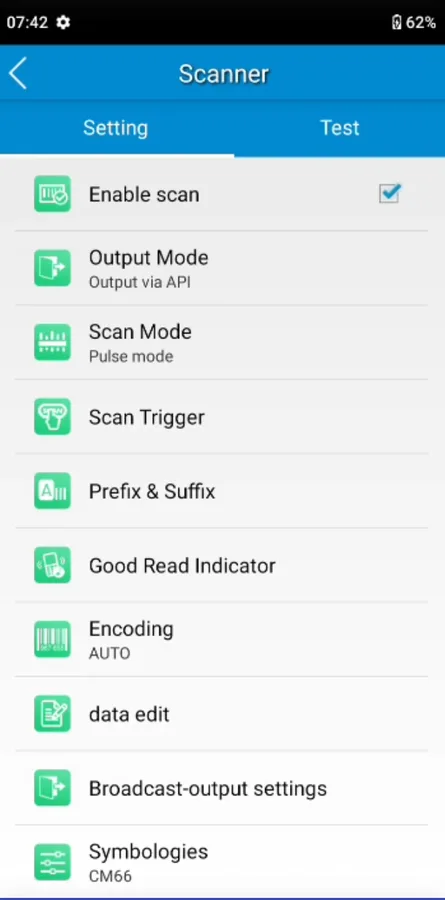
Enable scan 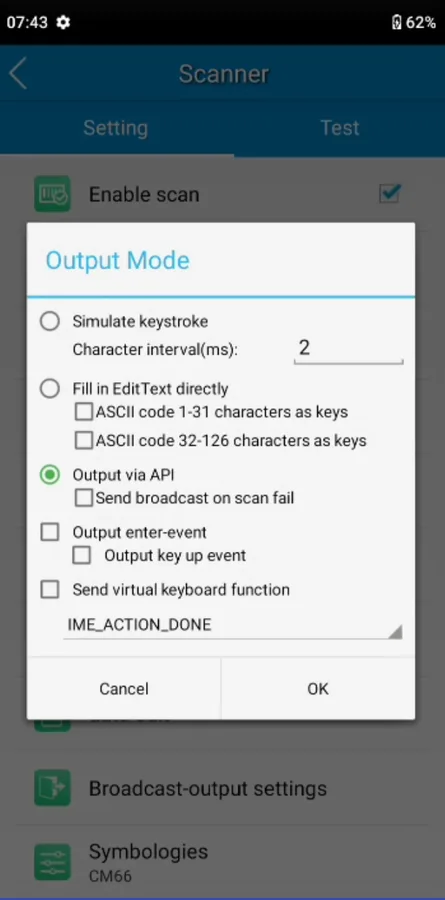
Output via API Set the broadcast action
Open Broadcast-output settings and set Broadcast action to
com.raptool.SCAN. Leave everything else as it is.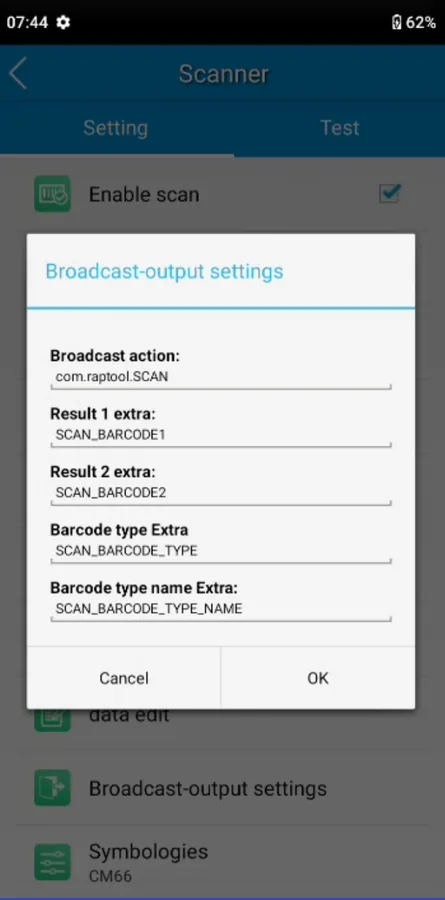
Broadcast action com.raptool.SCAN
In the Raptool Client
Hardware scanner setting
Turn on Hardware scanner
Open Settings (cogwheel, bottom left of the start screen) and set Hardware scanner On. It is on by default on rugged scanners (Zebra, Honeywell, Datalogic and others).
Scan
Tap the scan field and press the scan button on the device. The code lands in the field. With Hardware scanner on, no camera icons are shown.
Normal phones and tablets
Leave Hardware scanner Off. Tap the camera icon in the scan field and point the camera at the code.
Video guide: Turn on the hardware scanner.