Support
Set up printer
Raptool apps print through Raptool Label Automator, a print server for Windows. It prints labels and PDF documents on label printers and ordinary office printers, also without internet.
Install on the print server PC
A Windows PC that can reach your printers
Run the setup
Run Raptool Label Automator Setup. If Windows SmartScreen asks, choose More info → Run anyway, and answer Yes to the permission question. Leave “Open the Label Automator now” ticked.
Choose the admin password
Choose the local admin password (at least 8 characters) and how people sign in. Press Create password and start.
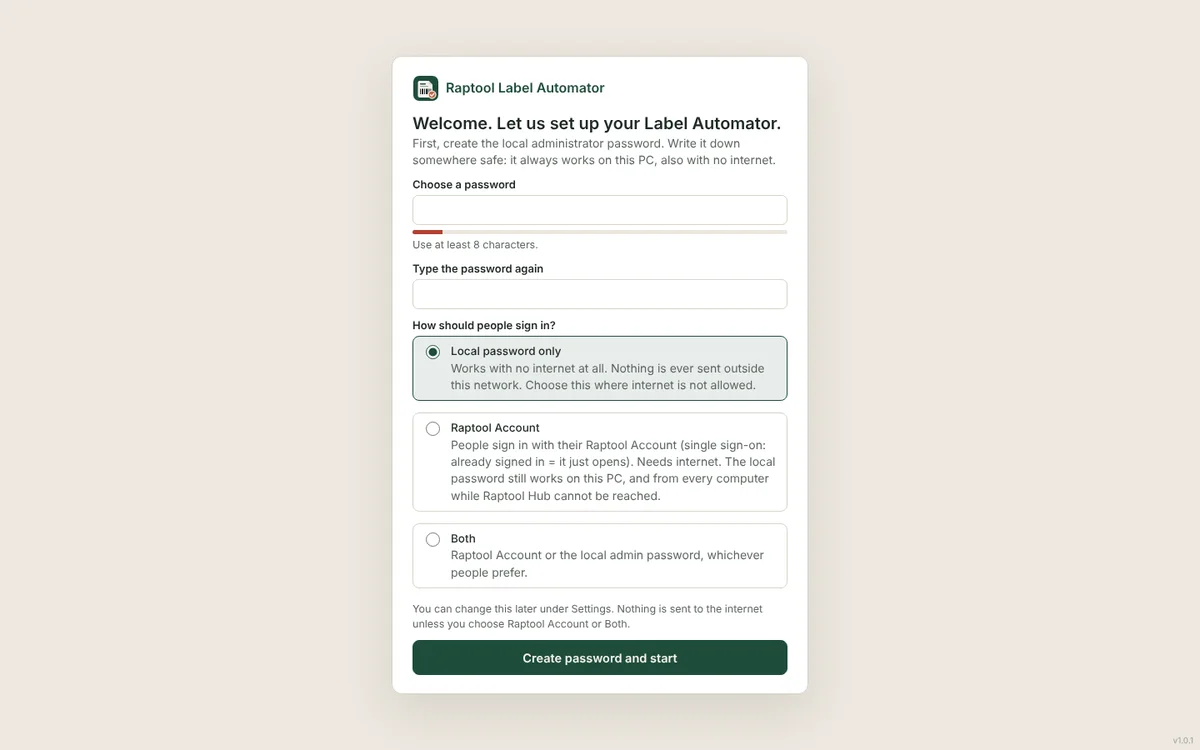
First start
Add a printer
Menu → Printers → Add a printer
Pick the kind, then where it is, the printer language, a name, and test it.
- Network printer: a label printer with an IP address (port 9100 by default)
- Office / laser printer (paper): any printer installed in Windows
- Printer installed in Windows: also for USB printers
- IPP printer: office printers, AirPrint and CUPS
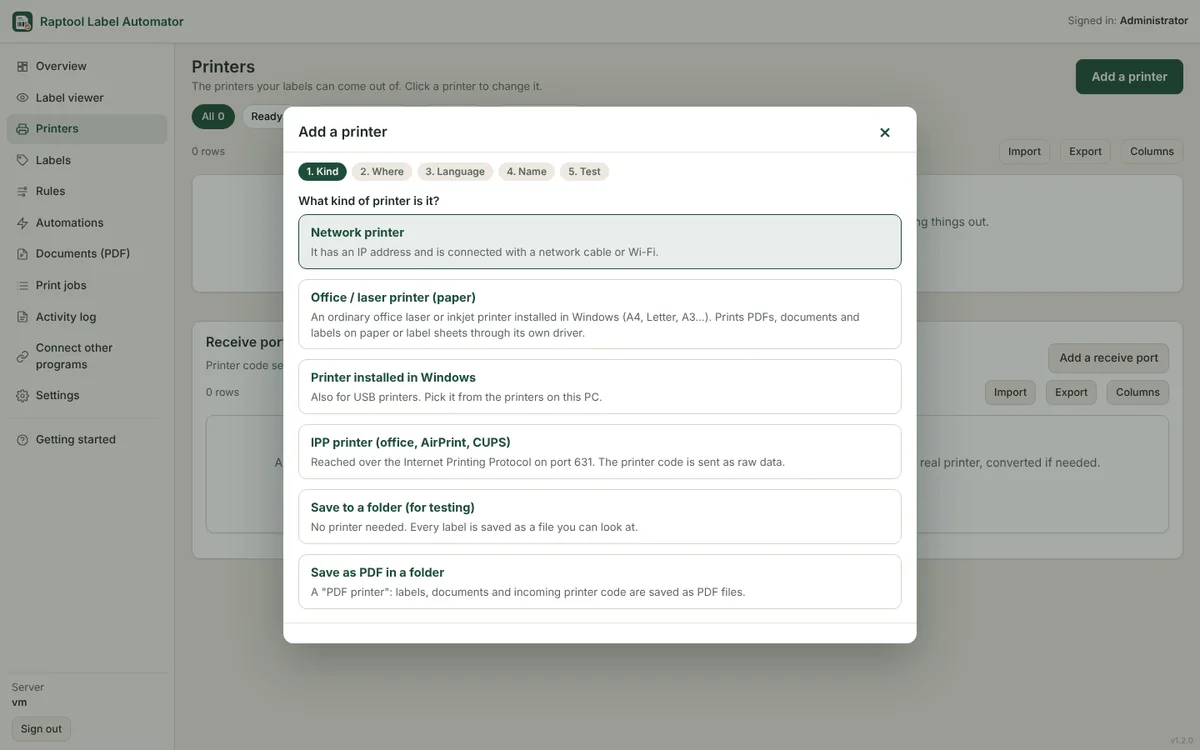
Add a printer: choose the kind Print a test
Print a test label or test page to check that everything works.
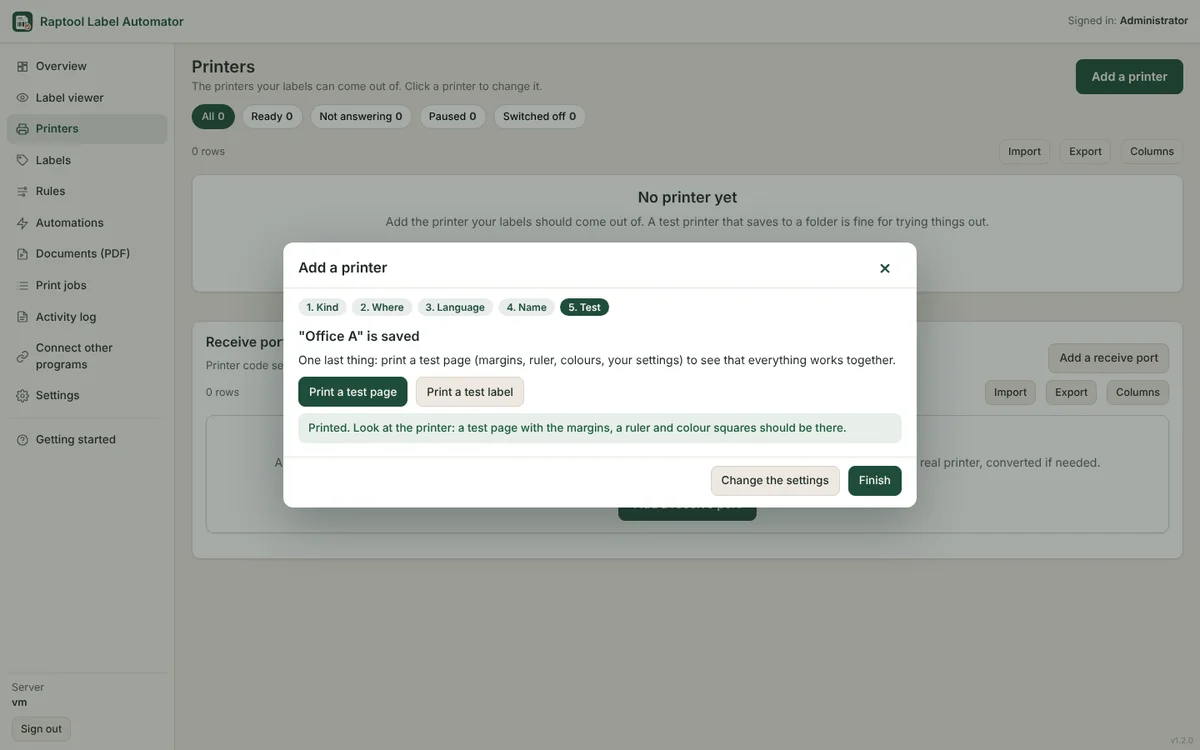
Test print
Connect your Raptool apps
Open Getting started
In the Label Automator menu, open Getting started.
Scan the QR code
Step 4 shows a QR code with the address and key for Raptool Client apps. Step 3 has the address and key for the Label Designer.