Support
Update an app
How to get the newest version of an app. Pick your Raptool Client.
Raptool 7 Client
Apps made in the Raptool 7 Designer (.rapx)
Swipe down
In the app, swipe down from the top of the screen. The top bar with the icons shows.
Tap the checkbox
Tap the checkbox icon. The Client gets the newest version of the app.

Not sure how your app is set up? Create a support ticket.
Raptool 8 Client
The new Raptool Client for Windows, Android, iPhone and iPad
Leave the app
Open the quick menu (swipe down with two fingers, or hold a top corner for 1 second; on a PC right-click a top corner or press Ctrl+Shift+I) and tap Log out of app.
Refresh the app list
Tap your name (top right) → Server apps. Tap the round refresh button in the bottom right corner (on iPhone: pull the list down).
Open the app again
Tap the app card. Download gets it first, Open starts it.
Check the version
Open the quick menu and tap i. It shows the app, the app version and the Raptool Client version.
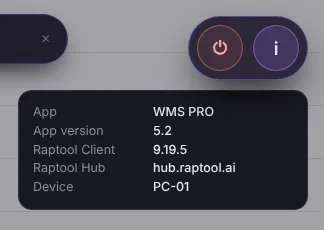
The i card: App version
Raptool 7 and Raptool 8 apps in the new Client
In testing Open the app again from the server list. The Client fetches only the files that changed. With no connection, the saved copy opens. This is in testing in the Windows Client.
The Client updates itself
On Windows the Raptool Client installs its own updates. When one is ready, a bar says Update ready – Restart.